
Ever wondered if upgrading your connected car is as simple as refreshing your favorite app? If your car’s tech is ready for cool new features, missing one key update might mean you miss out on smart perks. This handy checklist breaks down what to do, from checking your modem to making sure your battery is in great shape. Stick with us as we share easy, step-by-step tips to keep your system secure and your drive smooth every time you hit the road.
Connected Car Update Checklist: All-In-One Step-by-Step Guide
Kick things off by double-checking your car’s must-haves. Make sure the built-in cellular modem is up and running and that you're not sitting on a trial data plan that might cut off mid-update. Also, be sure your battery is charged or that your car is plugged in, and back up your telematics and personal settings just in case you need a quick recovery.
Now, head to your infotainment system’s update area. Tap on "Check for Updates" to start downloading the new firmware. Use a steady connection, either Wi-Fi or your cellular network, to keep the update moving along quickly. Ever notice how updating your phone apps is a breeze with clear instructions? It’s pretty much the same here. And if you need extra guidance, you can check out the guide on how to update your car firmware.
While the download is in progress, keep an eye on it. When you see prompts to install, tap OK and let your system restart. If your car doesn’t support over-the-air updates, it might be time to set up a dealer visit, as mentioned in the over the air vehicle update guide.
Once the update is done, run through these quick tests to make sure everything’s working:
- Connect your smartphone to test Apple CarPlay/Android Auto mirroring.
- Open your mobile app to try out remote features like starting your car, locking or unlocking doors, and checking fuel and tire pressure.
- Give voice commands to see if the system responds naturally.
- Check that your speed alert settings are spot on.
Lastly, make sure you set up future updates to come over the air so your system always has the latest features.
Connected Car Update Guidelines
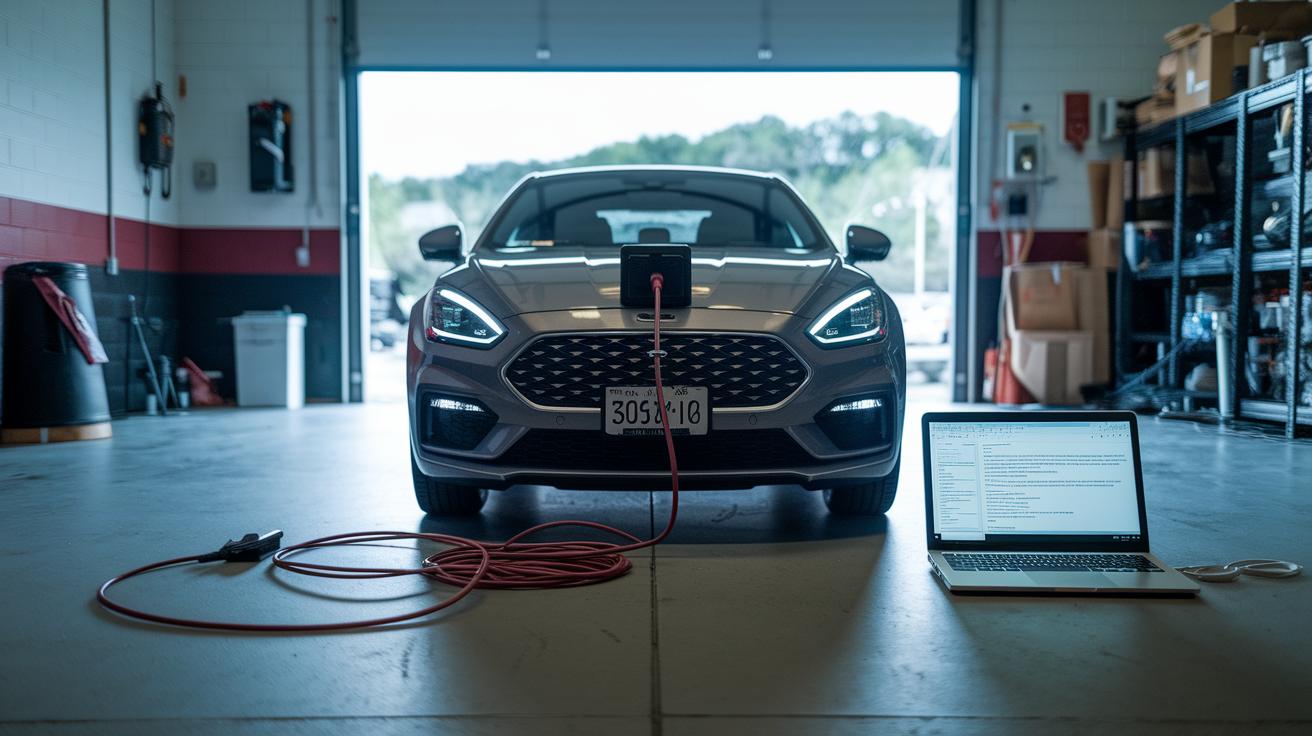
- Make sure your car battery is over 50% or hooked up to a charger. For example, before you head out, check your battery like you’d fill up your gas tank.
- Turn on your Wi-Fi or cellular data and check that the signal is strong enough so the update doesn’t get interrupted.
- Backup your telematics settings and user profiles to keep all your custom setups safe in case you need to restore them later.
- Double-check that the built-in cellular modem is active and note if your data plan is about to run out.
- Read through the manufacturer’s update notes for any model-specific tips to match the firmware requirements.
Think of these steps as your one-stop pre-update checklist, ensuring every key detail is covered once for a smoother, safer process.
Running Software and Firmware Update Process in the Connected Car Update Checklist
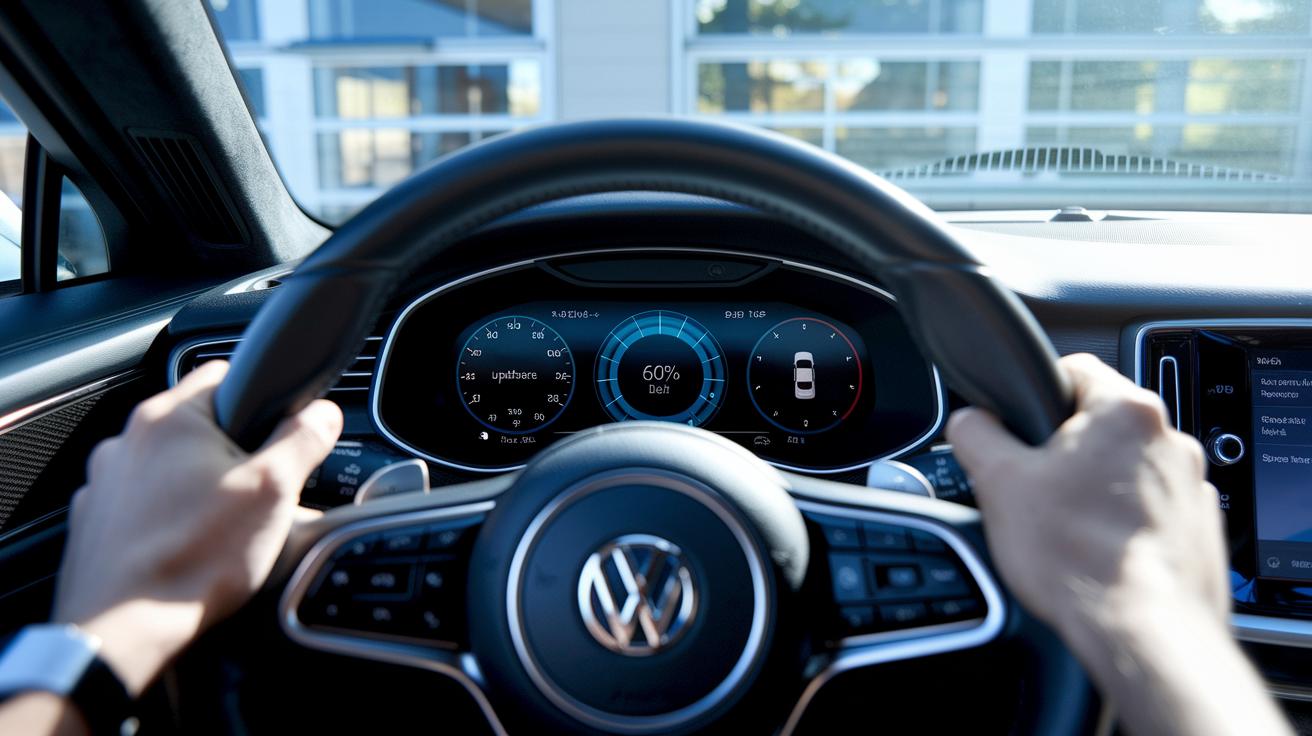
When you update your car's software and firmware, it's a bit like getting ready for a nice long drive. Here are some friendly pointers to ensure everything runs smoothly:
- Make sure you’re connected to a solid Wi-Fi or cellular network so nothing gets interrupted along the way.
- Keep an eye on the progress bar and only tap on installation prompts once, no need to double-tap like you're in a hurry.
- If you're doing an over-the-air update, stick with a strong signal throughout the entire process.
- A little extra care during the reboot phase goes a long way, let the status messages do their job without any interruptions.
- For cars that aren’t set up for OTA updates, it’s best to schedule your update with your dealer.
Think of it like a pit stop on a race track: when you see a message like "Reboot in progress," just sit tight. A bit of patience now makes for a smoother, more reliable ride later.
Verifying and Validating the Connected Car Update Checklist
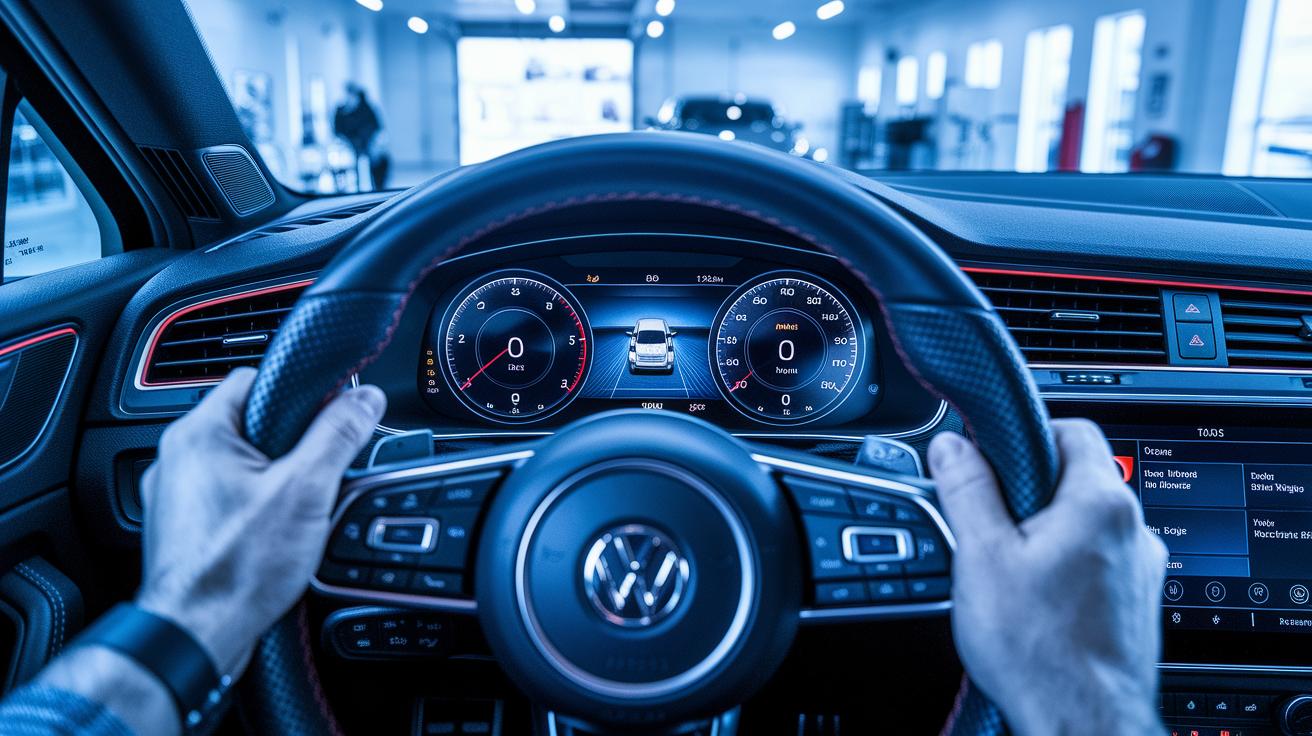
After you update your car’s system, it’s a good idea to run through a quick check to be sure everything is working just right. Start with the automatic crash response alerts, try a mild impact simulation or controlled test and see if the system sends a call for help automatically. Next up, turn on the stolen-vehicle assistance and roadside-help features. These handy tools let you track your car and call for help if you get a flat tire or a dead battery.
Here's a simple list of tests you can follow:
- Check the crash response alerts by looking at the status messages on your display.
- Activate the stolen-vehicle tracking and see if the system updates your car’s location.
- Test the roadside-help function by making sure the system picks up your service request.
After that, take a look at the smartphone mirroring feature for Apple CarPlay or Android Auto. Connect your phone and verify that your music, maps, and calling functions show up correctly on the touchscreen. Open your mobile app and try starting the engine remotely, locking or unlocking the doors, checking fuel and tire pressure, and even setting speed alerts. Finally, give the voice commands a try, ask for the nearest gas station and see if the system answers accurately.
Troubleshooting Failed Updates in the Connected Car Update Checklist
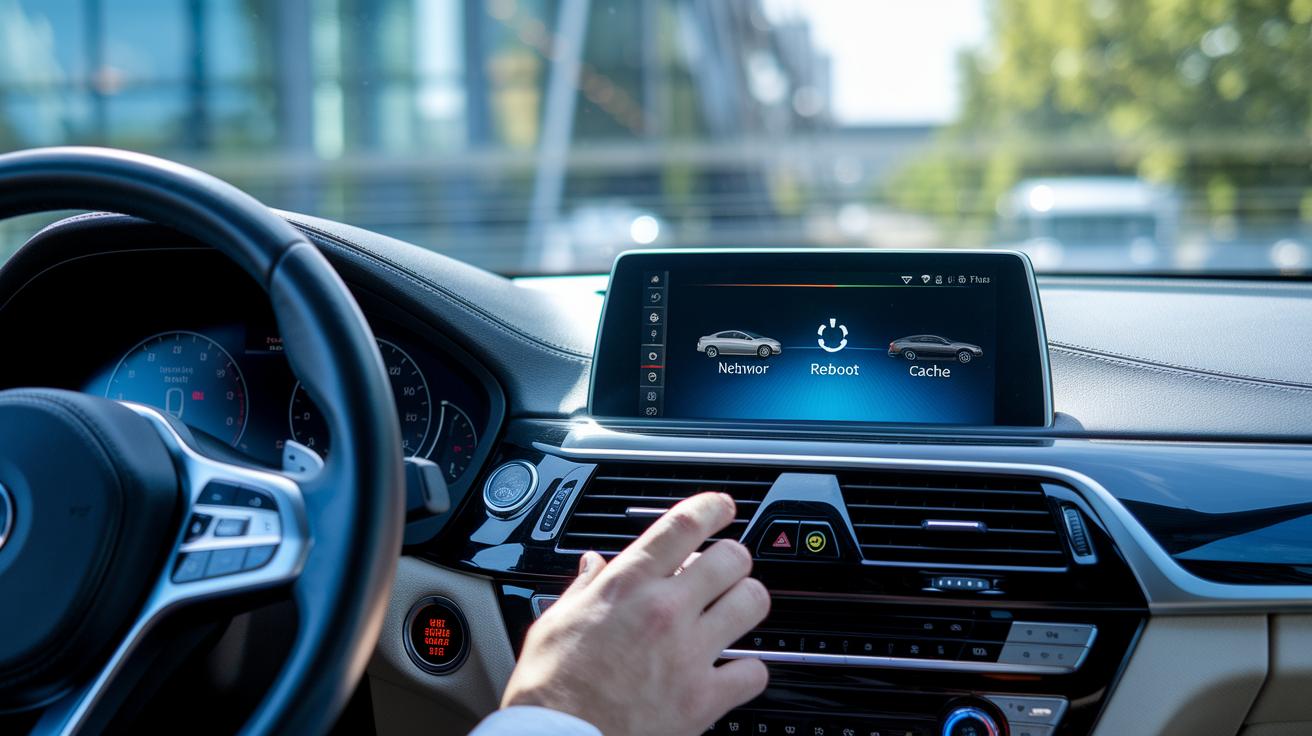
If your car's update download is stalling, try switching to a stronger network and give it another shot. A quick, soft reboot of your infotainment unit can often clear up little glitches that slow things down, and clearing out cached update files might just remove any data mix-ups.
If the update still refuses to finish, you might need to go back to the previous firmware using recovery mode. This step follows the basic connectivity troubleshooting rules and helps set the stage for more detailed fixes.
- Reconnect to a reliable network.
- Soft reboot the infotainment unit.
- Clear the cached update files.
- Roll back to the previous firmware using recovery mode.
- Reset the telematics module to factory settings.
- Reach out to OEM support or schedule a dealer service for a manual flash.
Sometimes, resetting all stored settings by returning the telematics module to its factory defaults can do the trick too. Always stick with your vehicle’s connectivity troubleshooting guidelines and update advice. A clear patch management process ensures that security updates happen as they should, keeping your car’s system safe. Take it step by step, and soon enough you'll have everything running smoothly again.
Planning Next Cycles of the Connected Car Update Checklist
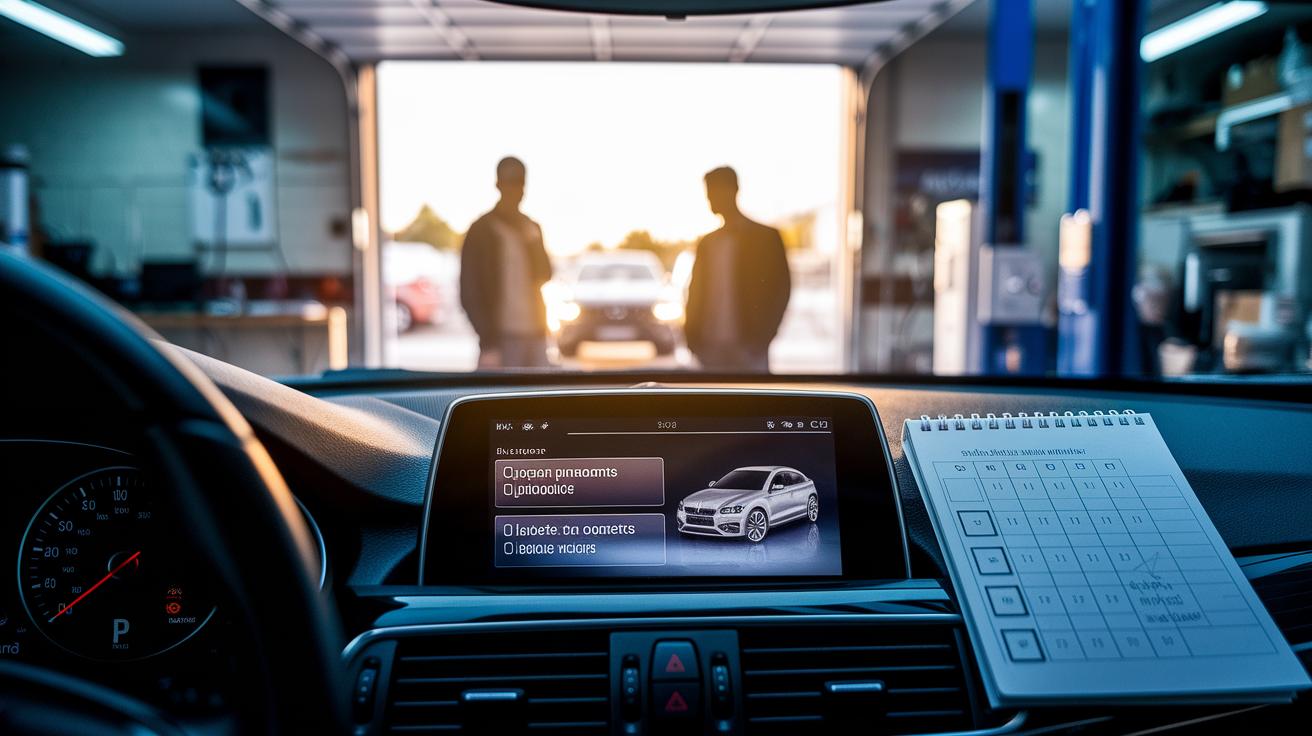
Keeping your car in top shape means setting a regular check-up schedule. Think of it as planning routine tune-ups. Mark your calendar for quarterly or monthly checks so you always know when to update your system. This simple plan helps you stay in sync with your car’s tech and keeps your network running smoothly.
- Sign up for OEM alerts so you get a heads-up as soon as patches are released.
- Check the update log on your infotainment screen to see what’s new.
- Back up your custom settings before every update, just in case.
- Use a basic spreadsheet to keep track of version history and improvements.
- Schedule your next over-the-air update around your own driving habits.
In short, treating updates like regular tune-ups keeps your car reliable and running at its best, just like a well-maintained engine on a sunny day.
Final Words
In the action, this article walked you through setting up your ride for a smooth connected car update checklist. We broke down everything: getting your vehicle ready, stepping through the software update and in-car update process, verifying key features like Apple CarPlay mirroring, and troubleshooting common tech hiccups. It even pointed you toward planning future update cycles so your car stays current. Enjoy the peace of mind that comes with knowing your vehicle is primed for all the latest auto tech innovations!
FAQ
What is the connected car update checklist template?
The connected car update checklist template offers a quick guide that covers each step—from preparing your car to troubleshooting issues—so you can confidently manage updates on your connected vehicle.
What does the connected car update checklist reddit discuss?
The connected car update checklist on Reddit gathers real-user tips and experiences, giving insights into how others tackle firmware updates and common issues they encounter during the process.
What information does the connected car update checklist PDF provide?
The connected car update checklist PDF delivers a handy, printable guide outlining everything from pre-update preparations to post-update tests, making it easy to follow during your update process.
Can I update my car software myself?
Updating your car software yourself depends on the system design. Many vehicles support over-the-air updates, but some features might need a dealer visit for installation.
What is the 30 60 90 rule for car maintenance?
The 30-60-90 rule for car maintenance suggests checking on critical systems at 30, 60, and 90-day intervals to keep your vehicle in top shape and spot issues early.
What is the 20 8 3 rule for buying a car?
The 20-8-3 rule for buying a car is a quick money guide: put down 20% upfront, keep monthly payments at about 8% of your income, and aim for a 3-year financing term.
What do I need to update when I get a new car?
With a new car, you’ll want to update the firmware and software, verify remote and app-controlled functions, and review the connected features to ensure they are calibrated for your preferences.