

Ever thought your car’s digital brain might be due for a checkup? Regular firmware updates help your ride run like it just rolled out of the shop. Think of it as a quick health check that brings in fresh fixes, smoother performance, and handy new features.
In this guide, you'll find simple steps and easy tips to update your car’s firmware with confidence. Ready to give your ride the boost it deserves? Let’s get rolling!
Comprehensive Car Firmware Update Guide
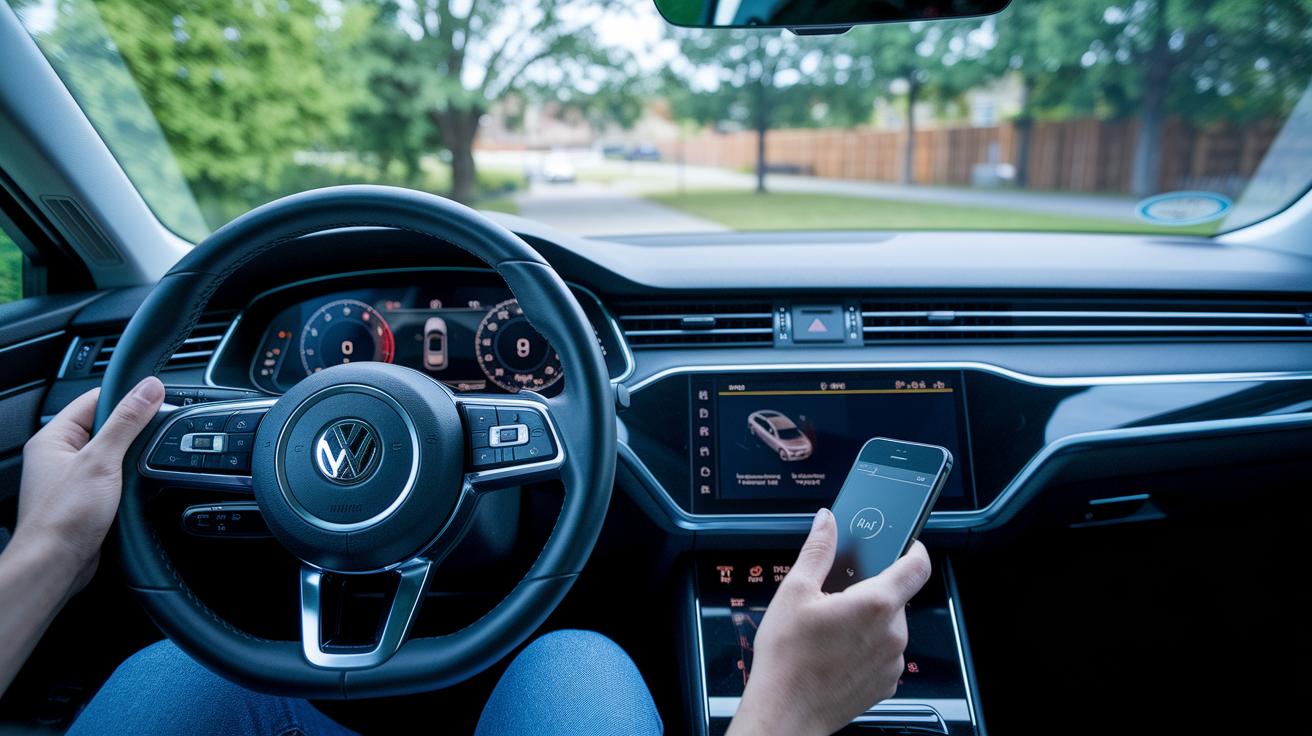
Keeping your car’s firmware updated is a bit like giving your ride a regular check-up, it helps everything run smoothly and safely. Over time, car makers push out updates that boost security, improve performance, and add handy features. Think of it as a tune-up for your car’s onboard computer. When you follow a simple digital update guide, you get the latest fixes and improvements without any extra cost. And if you ever feel stuck, video tutorials or screenshots are there to lend a hand. Just be sure to follow the safety tips your car comes with.
Here’s why firmware updates are a big deal:
- They add fresh security patches, fun new features, and fix annoying glitches.
- Updates from your car’s maker (OEM) come at no extra charge.
- Updating every 6–12 months keeps your car in sync with the latest tech and performance boosts.
Typically, the whole process takes about 30 to 60 minutes, depending on your internet speed and the size of the update file. Whether you use a USB stick or the over-the-air update feature, sticking to your manufacturer’s instructions is key. Don’t interrupt the process, unplanned restarts or power cuts can lead to issues. By setting aside a little time to complete the update, you’re treating your car to better safety, improved performance, and a smoother drive. Enjoy the ride knowing your car’s software is up-to-date!
Essential Tools and Prerequisites for Car Firmware Upgrades
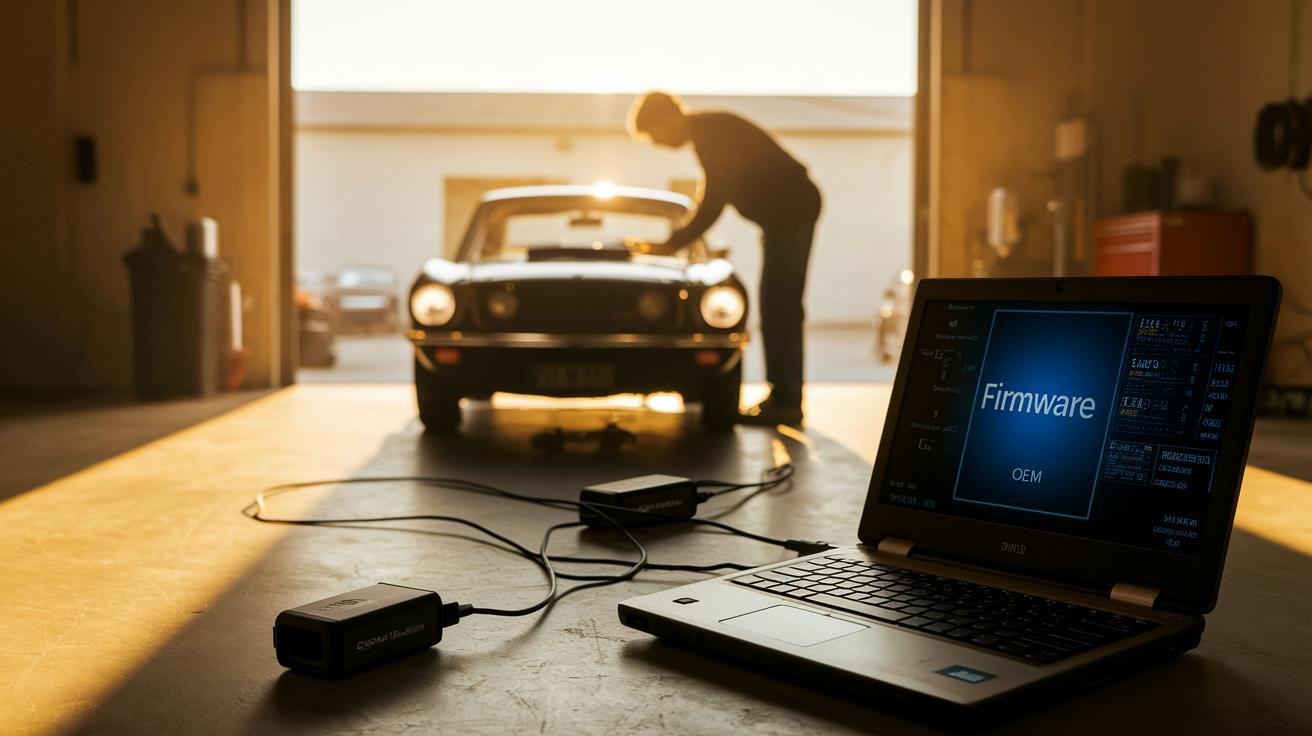
Before you dive in, make sure your car is in the right shape for an upgrade. Check that your battery is charged to at least 50% or, even better, hook up a battery maintainer to keep your power steady. And don’t forget a solid internet connection, whether it’s using your own network or the manufacturer’s Wi-Fi hotspot, to download everything without a hitch.
Next up, gather all the tools and files you’ll need. First, download the correct firmware from the OEM portal and give it a quick check to avoid any issues later on. Then, grab a FAT32-formatted USB drive or a diagnostic tool that suits your car. Finally, switch your ignition to ACC/ON mode so the system knows it’s time to get the new software installed.
Performing the Firmware Refresh: A Step-by-Step Vehicle Update
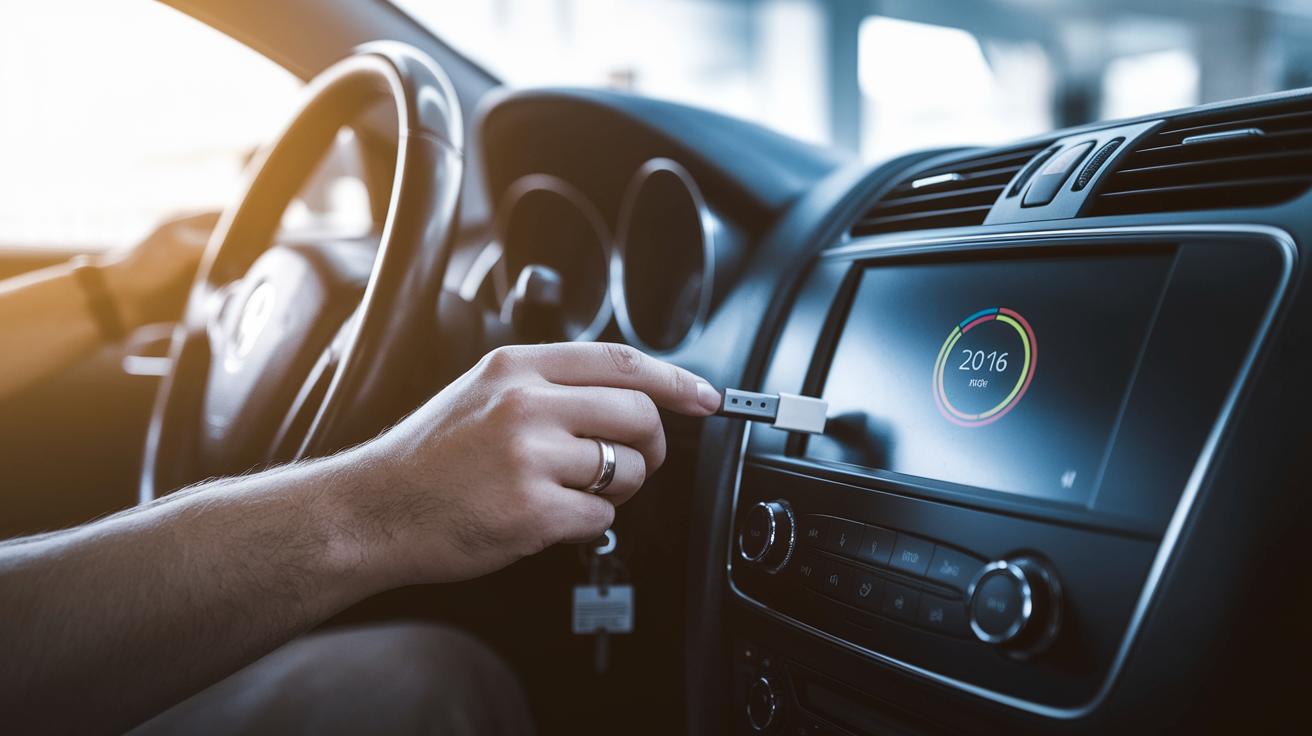
Before you jump in, open your car’s infotainment update menu or hook up your diagnostic tool. It’s like setting up your favorite playlist, simple and smooth. Make sure you're comfy with the controls first, just like checking your mirrors before a drive.
Start by downloading the correct OEM firmware file. Use the manufacturer’s checksum tool to double-check it’s legit. Once verified, copy it to a FAT32 USB drive or load it into your car’s approved diagnostic system.
Next, plug the USB into your car’s infotainment port or securely attach your diagnostic tool to the OBD-II socket. Then, turn the ignition to ACC mode or ON without starting the engine so the system stays active but safe.
Head over to the software update menu through the infotainment settings or your diagnostic tool’s interface. Pick the new firmware file from the list and confirm its installation to get things rolling.
Now, sit back and give it some time, usually 30 to 60 minutes, for the update to install. The system might reboot a few times along the way, which is perfectly normal. Just don’t pull the plug on the USB or disconnect the tool until you see that clear “Update Complete” message.
Keep everything powered up and steady, and avoid any distractions while the update is in progress. With a little patience, you’ll have your vehicle’s system refreshed and running smoothly once again.
Confirming Car Firmware Version After Your Update
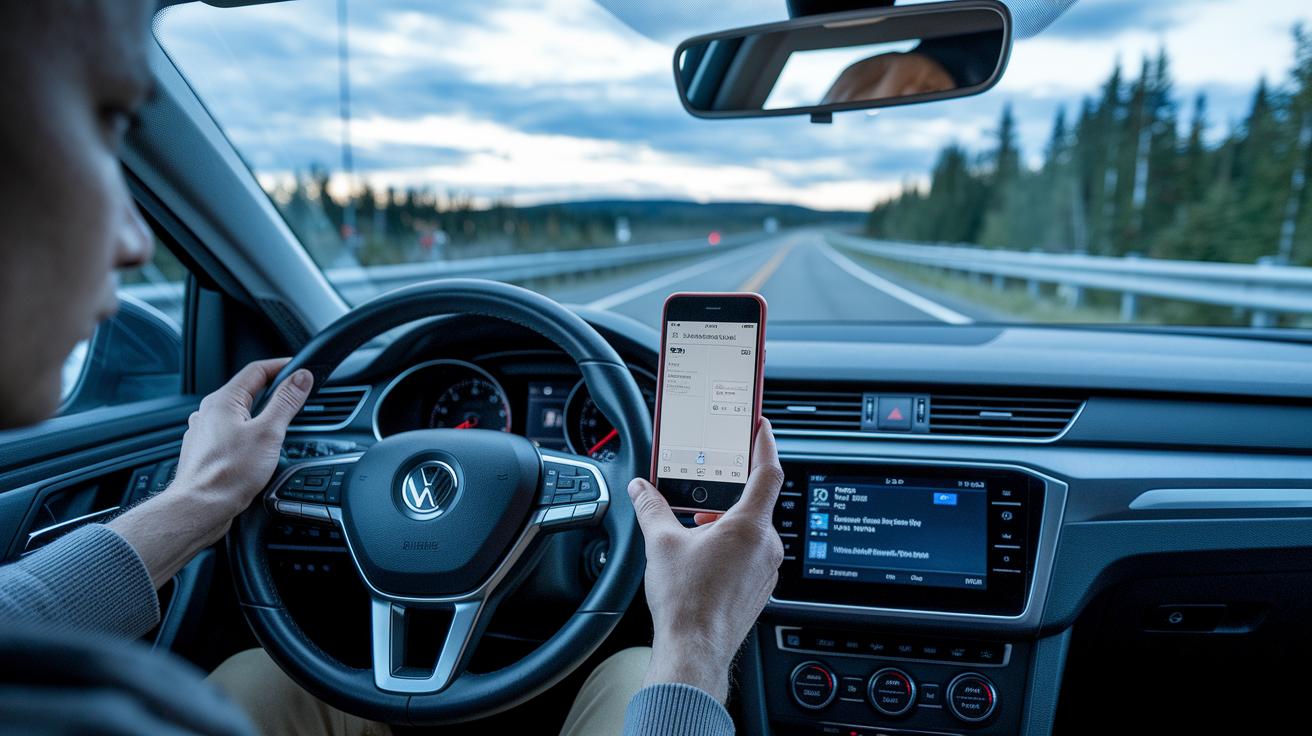
After you install the new firmware, take a moment to ensure your car shows the update correctly. Head into the Settings, then System, next About, and finally check the Firmware Version. Compare what you see with the version number provided by the manufacturer. For example, if you’re expecting "v3.2.1" and that’s exactly what appears, you know the update went off without a hitch. This quick check reassures you that the main update process worked smoothly.
Next, go on a short drive to see if everything runs as it should. Listen to the sound of your infotainment system, check that the navigation gives accurate directions, and feel confident that the stability control and engine management are working right. Don't forget to write down the new firmware version and the update date in your service log. This little record helps keep a clear history for warranty checks and any future troubleshooting needs.
Troubleshooting Installation Errors in Car Firmware Updates

Ever been in the middle of updating your car’s firmware and then suddenly things go off track? You might see error messages flashing up, your system might reboot unexpectedly, or the file just won’t download right. It’s like your car’s control system gets a bit confused, maybe because the file was damaged or there was a quick power dip during the process. Sometimes it’s simply a case of the firmware version not matching what your car expects, which can kick off repeated reboots.
So, what can you do? First, try downloading the firmware file again directly from your manufacturer’s website and check the checksum to be sure it’s solid. Next, swap out your USB stick or diagnostic cable if you suspect they might be causing hiccups. Also, keep the engine running or hook up a battery maintainer to give your update a stable power source. And don’t forget to clear any Diagnostic Trouble Codes using your OBD software. If issues still persist after these steps, it might be time to reach out to dealer support before attempting another update.
Safety Precautions for Updating Vehicle Firmware
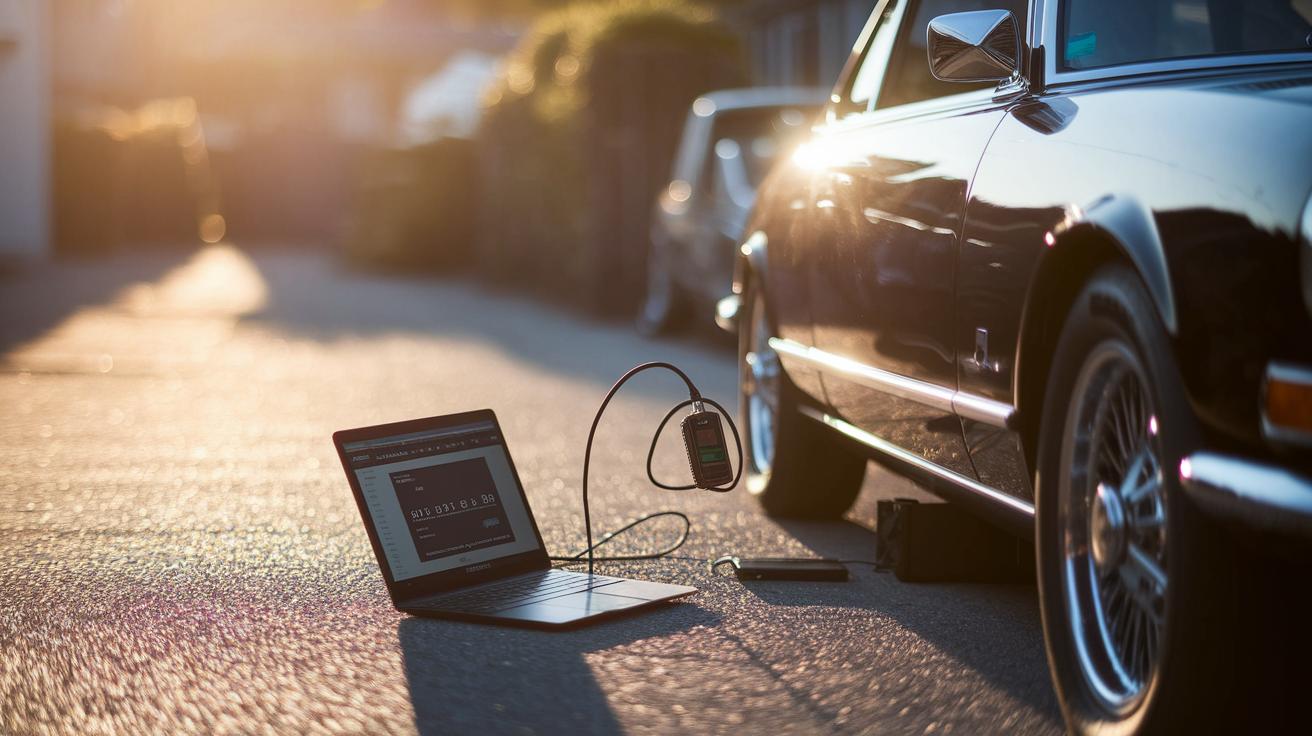
Before you kick off any firmware update, set up your space on a flat area with plenty of fresh air. It’s a bit like choosing a ripe, sunny day for a drive, you want a steady, reliable setup. Make sure your car's engine is running or that a battery maintainer is connected so you don’t lose power in the middle of the process. And hey, avoid starting your update during a storm or when the temperature is way too high or low because those conditions can mess things up.
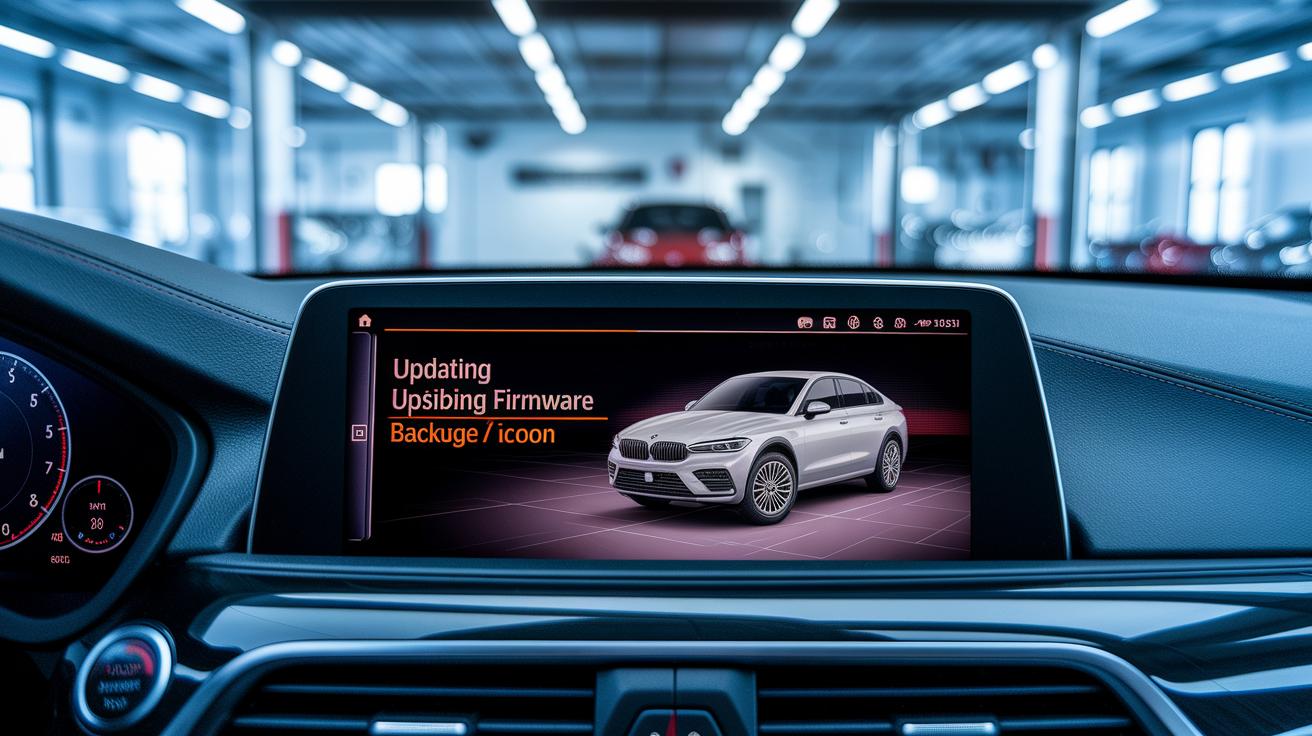
Stick with update tools and firmware that the car’s maker recommends. Always back up your user profiles, radio presets, navigation favorites, and any personal data before you install the new firmware. Think of this backup like saving your favorite tune before going to a big concert; it makes sure all your customized settings are safe from any surprises during the update.
Frequently Asked Questions on Car Firmware Updates
How often should I update my car’s firmware?
Stick to the schedule your car’s maker recommends, usually every 6 to 12 months. It’s a simple way to keep your ride current without diving into too many details.
Will firmware updates erase my settings?
Most of the time, your personal settings stay intact. It’s a good idea to back up your key data beforehand, just like saving your favorite playlist before a long drive.
Can I roll back to a previous firmware version?
In most cases, you can’t revert to an old version because of tech limits and your car maker’s rules. This helps your system stay stable and free of issues.
Is over-the-air better than USB?
OTA updates are great when you’re in areas with strong Wi-Fi, offering speed and ease. But if you’re somewhere with weak signals, a USB update can be a real lifesaver.
Are firmware updates free or paid?
The update files themselves don’t cost a dime. However, if you go to a dealer or third-party service for help, there might be a charge, just like the main guide explains.
How long does the update process take?
Expect the process to run anywhere from 30 to 60 minutes. It depends on the file size and your connection speed, but it’s usually a quick operation.
Final Words
In the action, our guide walked through updating your car’s firmware. We discussed why regular updates matter, highlighted key benefits like security patches and new features, and listed essential pre-updates tools and safety checks. We then explained every step, from verifying your firmware file to checking your system version after the update. Following these clear steps proves how to update car firmware efficiently and safely. Keep your ride at its best and enjoy the extra perks that come with a refreshed system.
FAQ
How do I update Toyota car firmware and check for the latest version?
The Toyota firmware update involves downloading the correct file from Toyota’s official site, installing it via USB or an approved tool, and using the car’s menu to confirm the updated version.
How do I update car firmware without using a USB?
Updating without a USB means using over-the-air update technology or seeking dealer assistance, letting you install new firmware through the car’s built-in connectivity and update menu.
How do I update my Android head unit to Android 14?
Updating an Android head unit to Android 14 involves downloading the official update file, transferring it to your system via the update menu, and following on-screen instructions while ensuring a solid connection.
What is a firmware update on a car?
A car firmware update is the process of installing new software to improve performance, add features, and fix bugs, refreshing the system without replacing any physical components.
Can I update my car software myself and how do I manually update the firmware?
Updating your car software yourself means following manufacturer directions to download and install the firmware manually, often using a USB drive or diagnostic tool while adhering to clear, step-by-step instructions.
Do I need to update my car software?
Updating car software keeps your vehicle’s systems fresh and secure by fixing bugs and adding improvements, helping maintain performance and compatibility with new features offered by the manufacturer.